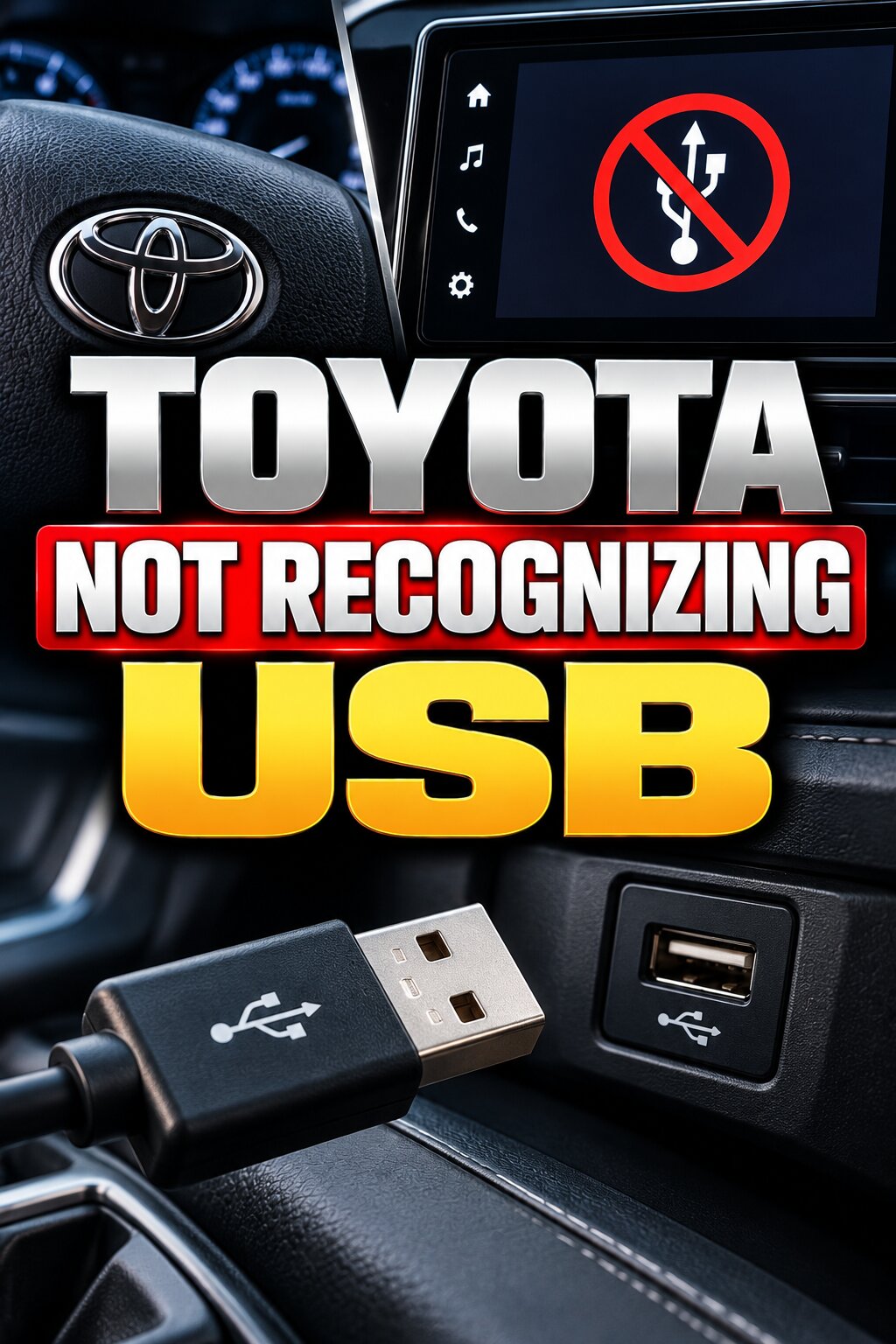
A USB port in your Toyota is designed to connect smartphones, flash drives, and media devices for charging, music playback, navigation integration, and smartphone connectivity. When the infotainment system suddenly stops recognizing a USB device, it can be frustrating, especially during long trips.
The good news is that most Toyota USB issues are caused by simple problems such as a damaged cable, unsupported file format, software glitch, or faulty USB drive. In other cases, the problem may involve the vehicle’s USB port, infotainment software, or smartphone settings.
This guide explains the most common reasons a Toyota is not recognizing a USB device and how to fix them.
Key Takeaways
| Problem | Quick Fix |
|---|---|
| USB device not detected | Reconnect device and restart infotainment system |
| Faulty USB cable | Replace with OEM-quality data cable |
| Unsupported file format | Convert files to MP3, WMA, AAC, or supported formats |
| USB drive too large | Use a smaller-capacity USB drive |
| Dirty USB port | Clean port carefully with compressed air |
| Smartphone not recognized | Enable data transfer mode |
| Apple CarPlay not working | Use an Apple-certified cable |
| Android Auto not connecting | Enable Android Auto settings |
| Software glitch | Restart infotainment system |
| Faulty USB port | Inspect and repair port |
Common Signs of a Toyota USB Problem
You may notice one or more of these symptoms:
- USB device not detected
- “No USB Device Found” message
- Music files do not appear
- USB disconnects repeatedly
- Phone charges but won’t connect
- Apple CarPlay not launching
- Android Auto not working
- USB drive works in other vehicles
- Infotainment screen freezes when USB is connected
The symptoms often provide clues about the underlying issue.
1. Faulty or Damaged USB Cable
One of the most common causes is a bad USB cable.
Many cables support charging only and do not transmit data. Others may have damaged internal wiring that prevents communication between the device and the infotainment system.
Symptoms
- Phone charges but doesn’t connect
- CarPlay or Android Auto fails
- Device disconnects randomly
Fix
- Use an OEM or certified cable.
- Try a different cable.
- Avoid excessively long cables.
- Replace worn or damaged cables.
Many USB connection issues are resolved simply by changing the cable.
2. USB Drive Format Not Supported
Toyota infotainment systems support only certain file formats.
If the USB drive uses an unsupported format, the system may not recognize it.
Common Supported Formats
- MP3
- WMA
- AAC
- FAT32 USB formatting
Common Unsupported Formats
- NTFS (on some models)
- exFAT (on older systems)
- FLAC (on older infotainment units)
Fix
- Backup your files.
- Format the USB drive to FAT32.
- Reload supported music files.
3. USB Drive Capacity Too Large
Older Toyota infotainment systems may struggle with very large USB drives.
A 256GB or 512GB flash drive may exceed system limitations.
Symptoms
- USB not detected
- Long loading times
- Missing music folders
Fix
Try:
- 16GB USB drive
- 32GB USB drive
- 64GB USB drive
Smaller drives often work better with older Toyota multimedia systems.
4. Dirty or Damaged USB Port
Dust, dirt, lint, and debris can block proper USB connections.
Over time, contaminants accumulate inside the port and interfere with electrical contacts.
Symptoms
- Intermittent connection
- Device disconnects while driving
- USB only works when cable is moved
Fix
- Turn vehicle off.
- Inspect USB port.
- Use compressed air.
- Remove debris carefully.
Avoid inserting metal tools into the port.
5. Smartphone USB Settings
Modern smartphones often require manual permission before data transfer begins.
Android Devices
Many Android phones default to:
- Charging only mode
Instead of:
- File transfer mode
- Android Auto mode
Fix
- Connect phone.
- Open USB settings.
- Select:
- File Transfer
- Android Auto
- Data Transfer
Depending on your device model.
6. Apple CarPlay Connection Problems
Toyota vehicles equipped with Apple CarPlay require a stable data connection.
Common Causes
- Non-certified cable
- Outdated iPhone software
- CarPlay disabled
- Dirty Lightning port
Fix
- Use Apple-certified cable.
- Update iOS.
- Enable CarPlay.
- Restart iPhone.
- Clean charging port.
7. Android Auto Issues
Android Auto problems can look like USB failures.
Symptoms
- Phone detected but Android Auto won’t launch
- Frequent disconnects
- Black screen
Fix
- Update Android Auto.
- Update Android OS.
- Clear Android Auto cache.
- Reconnect phone.
Many Android Auto problems are software-related rather than hardware-related.
8. USB Device Contains Corrupted Files
A corrupted file can prevent Toyota’s infotainment system from reading an entire USB drive.
Symptoms
- USB partially loads
- Music library freezes
- Random disconnects
Fix
- Scan USB drive for errors.
- Remove corrupted files.
- Reformat drive if necessary.
9. Infotainment Software Glitch
Toyota multimedia systems occasionally experience software bugs.
Symptoms
- USB suddenly stops working
- Screen freezes
- Device not detected
Fix
Soft Reset
- Turn vehicle off.
- Open driver’s door.
- Wait several minutes.
- Restart vehicle.
System Reboot
Some Toyota systems allow a multimedia reboot through the settings menu.
10. Outdated Infotainment Software
Toyota periodically releases multimedia updates.
Older software versions may cause:
- USB compatibility issues
- CarPlay problems
- Android Auto failures
Fix
Check for multimedia updates through:
- Toyota dealership
- Toyota multimedia support resources
- Vehicle software update system
11. Faulty USB Hub or Multimedia Module
If all devices fail to connect, the USB hub itself may be defective.
Symptoms
- No devices recognized
- Multiple cables fail
- Charging unavailable
Diagnosis
Test:
- Another phone
- Another USB drive
- Different cable
If nothing works, hardware failure becomes more likely.
Fix
Repair or replace:
- USB hub
- USB module
- Multimedia interface
12. Insufficient Power Supply
Some devices require more power than the Toyota USB port can provide.
Examples
- External hard drives
- High-capacity SSDs
- Multimedia adapters
Symptoms
- Device powers on briefly
- Frequent disconnects
- Device never loads
Fix
Use:
- Standard USB flash drives
- Powered accessories when necessary
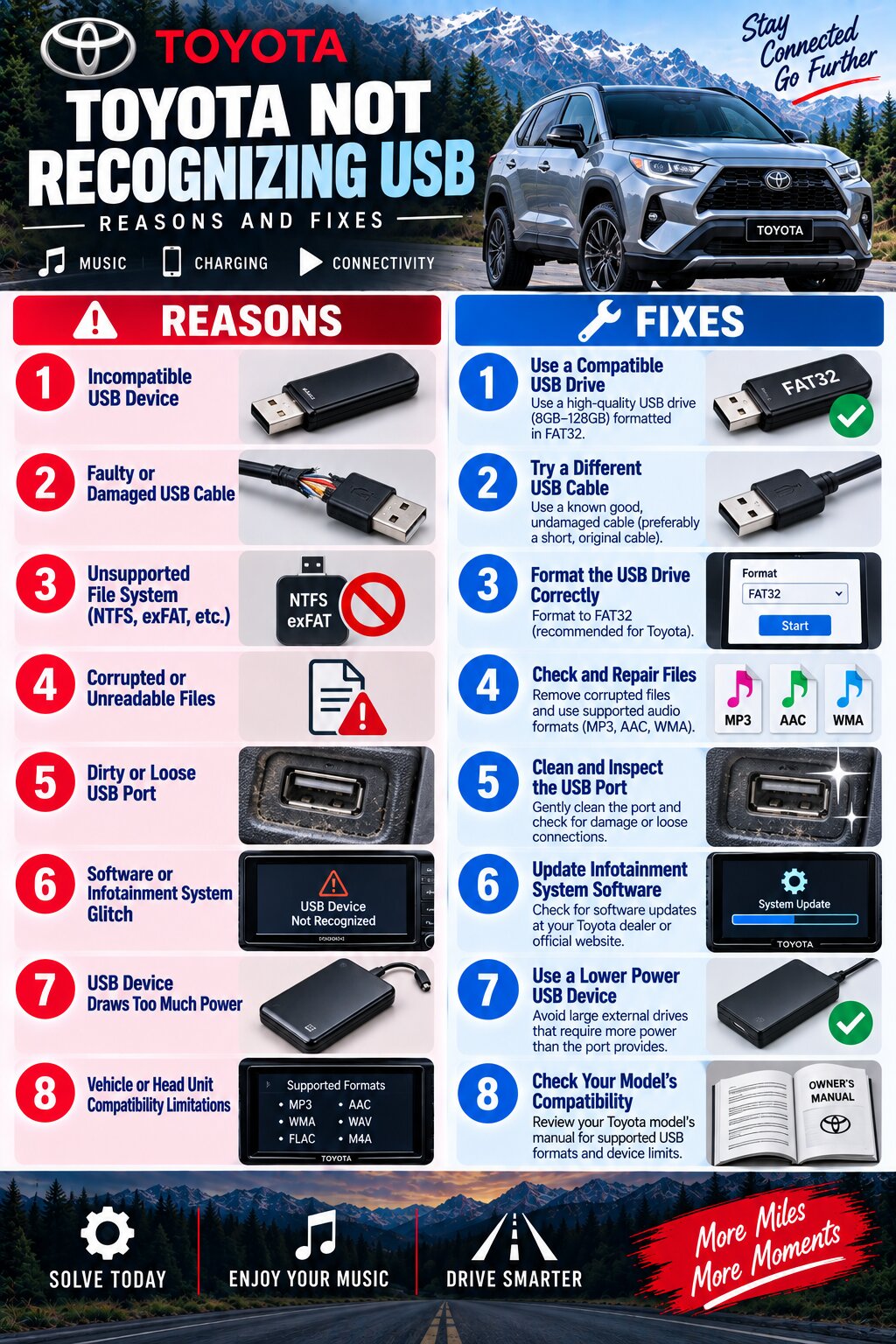
How to Troubleshoot Toyota USB Recognition Problems
Step 1: Test Another Device
Connect:
- Different phone
- Different flash drive
If the second device works, the original device is likely the problem.
Step 2: Replace the Cable
Try a known-good data cable.
Step 3: Restart the Infotainment System
Rebooting often clears temporary software glitches.
Step 4: Inspect the USB Port
Look for:
- Bent pins
- Dirt
- Corrosion
Step 5: Check Smartphone Settings
Verify:
- CarPlay enabled
- Android Auto enabled
- Data transfer permissions granted
Step 6: Update Software
Update:
- Phone software
- Toyota multimedia software
Step 7: Scan for Hardware Faults
If all else fails, inspect the USB hub and multimedia system.
Toyota Models Commonly Reporting USB Recognition Issues
| Model | Common USB Issue |
|---|---|
| Toyota Corolla | CarPlay connection failures |
| Toyota Camry | USB drive compatibility issues |
| Toyota RAV4 | Android Auto disconnects |
| Toyota Tacoma | Intermittent USB port operation |
| Toyota Tundra | Faulty USB hub |
| Toyota Highlander | Smartphone detection problems |
| Toyota Prius | Multimedia software glitches |
| Toyota Sienna | USB drive loading errors |
| Toyota 4Runner | Older infotainment compatibility limitations |
| Toyota Venza | CarPlay and Android Auto setup issues |
Quick Troubleshooting Table
| Problem | Likely Cause | Solution |
|---|---|---|
| USB not detected | Bad cable | Replace cable |
| Phone charges only | Charging-only cable | Use data cable |
| Flash drive not recognized | Unsupported format | Format to FAT32 |
| CarPlay not working | iPhone connection issue | Update iPhone and cable |
| Android Auto not launching | Android settings issue | Enable Android Auto |
| Frequent disconnects | Dirty USB port | Clean port |
| Music files missing | Unsupported file type | Convert files |
| All devices fail | Faulty USB port | Inspect hardware |
| Random USB errors | Software glitch | Restart system |
| Large USB drive ignored | Capacity limitation | Use smaller drive |
Frequently Asked Questions
Why does my Toyota charge my phone but not recognize it?
The cable may support charging only and not data transfer.
Why won’t my Toyota read my USB flash drive?
The drive may be formatted incorrectly or contain unsupported files.
Does Toyota support exFAT USB drives?
Some newer models do, but many older systems work best with FAT32.
Why does Apple CarPlay keep disconnecting?
Common causes include faulty cables, outdated software, or dirty ports.
Can a software update fix USB problems?
Yes. Multimedia software updates often improve compatibility and stability.
Why does Android Auto not connect through USB?
Android Auto may be disabled or your phone may be set to charging-only mode.
Can a damaged USB port be repaired?
Yes. A dealer or qualified technician can replace the USB hub or port assembly.
How do I reset my Toyota infotainment system?
Turn the vehicle off, wait a few minutes, and restart. Some models also provide a reboot option in the settings menu. (Reddit)
Final Thoughts
If your Toyota is not recognizing a USB device, start with the simplest solutions: check the cable, verify the USB drive format, inspect the port, and restart the infotainment system. Most problems stem from connection issues, incompatible storage devices, smartphone settings, or software glitches rather than major hardware failures.
If multiple devices and cables fail to connect, the USB port, hub, or multimedia module may require professional diagnosis. By following a systematic troubleshooting process, you can usually restore USB functionality without replacing unnecessary parts.